Roundup
5 Batch Image Compressors for Windows (Free, 2026 Edition)
HEIC photos from an iPhone, JPEGs from a camera, PNG screenshots. You want to put hundreds of them in one folder and shrink them all at once. This article compares software that can do this on Windows 11 on four points: HEIC support, resizing, CLI, and local processing.
 Daichi
November 2, 2026
~8 min read
For photographers who batch-process photos

Common batch compression mistakes
First, here are some examples of what goes wrong. These problems can be prevented with settings, before you switch software.
HEIC won't open, and you end up only converting to JPEG
iPhone photos are HEIC. Software that doesn't support the format can't read them. Converting to JPEG in a separate tool doesn't make them lighter either, because the resolution stays the same. Renaming the extension to JPEG doesn't change the contents, so the file won't open and looks corrupted. Choose software that reads HEIC directly, or do the conversion and compression in the same step.
Lowering only quality while keeping the resolution
A 6000px photo still takes up several hundred KB after you lower the quality. For web use, resizing to 1600 to 1920px on the long edge is more effective. On the other hand, resizing photos meant for print leaves them short on resolution. The typical mistake is processing everything with the same settings without separating use cases.
Overwriting files by outputting to the source folder
If your batch settings use the same folder for output and input, the original files are overwritten. If something goes wrong, you can't go back. Create a dedicated output folder and keep the originals.
Uploading to the cloud
Web-based batch compression is convenient because nothing needs installing, but your images are sent to the service's servers. If you handle NDA work, unreleased product photos, or family photos, choose software that processes locally.
Comparison table of the five tools
This table is based on facts we could confirm as of November 2026. Pricing shows the offering type only, and we have not listed amounts we couldn't confirm.
| Product | Input formats (HEIC) | Batch | Resize | CLI | Local | Price |
|---|---|---|---|---|---|---|
| Karui | JPEG / PNG / WebP / AVIF / HEIC / HEIF / PDF (✓) | ✓ | ✓ | ✓ | ✓ | Free for 20 files a day / $29 one-time |
| Caesium | JPG / PNG / WebP / TIFF (✗) | ✓ | ✓ | ✓ | ✓ | Free |
| FileOptimizer | Many formats. HEIC / HEIF also supported as extensions (△) | ✓ | ✗ | ✓ | ✓ | Free (OSS) |
| XnConvert | 500+ formats. HEIC / HEIF / AVIF / RAW (✓) | ✓ | ✓ | ✗ (NConvert separately) | ✓ | Free for personal use, paid for business use |
| TinyPNG | JPEG / PNG / WebP / AVIF / HEIC (✓, converted to JPG) | ✓ | ✗ (possible with API) | ✗ (API) | ✗ (upload) | Free tier + paid plans |
ImageOptim can't be used on Windows. It is a free, OSS tool for macOS only, and no Windows version exists. The official ImageOptim site points Windows users to Pinga and FileOptimizer as alternatives. Including ImageOptim in a Windows comparison table would be inappropriate.
"HEIC" in the table refers to whether a tool can read HEIC as input. The △ for FileOptimizer means its supported extensions include HEIC / HEIF, but it focuses mainly on lossless optimization. If you want to compress while adjusting the appearance, choose Karui or XnConvert.
Review of each tool
Karui: batch processing for HEIC and PDF in one app
Karui is a desktop app that runs on Windows 10+ and macOS 12.0+. It accepts JPEG, PNG, WebP, AVIF, HEIC, HEIF, and PDF as input, and outputs images as JPEG, PNG, or WebP. It includes batch processing, cropping, resizing, and a CLI, and all processing stays on your machine.
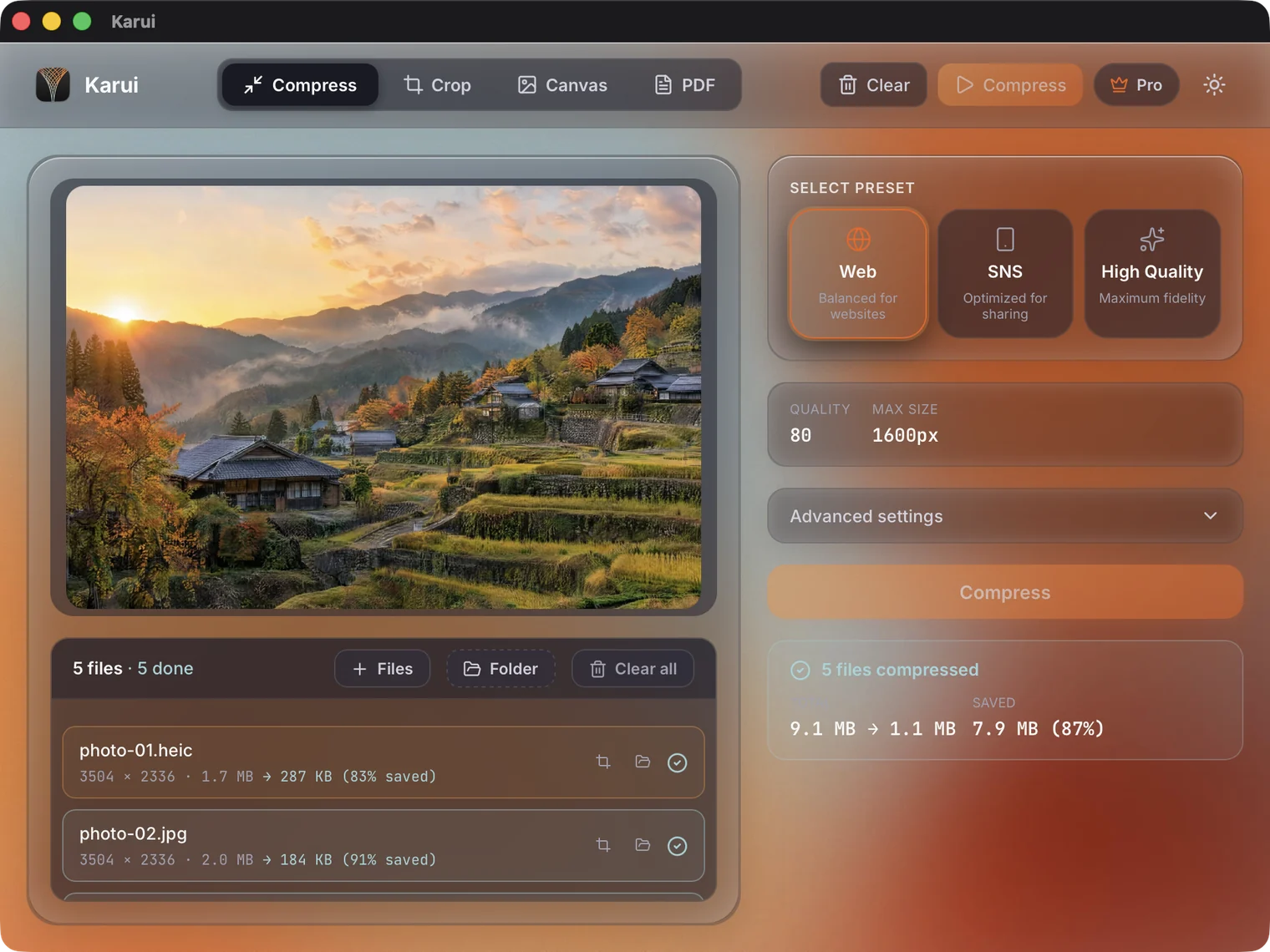
In our in-house measurements, a 9.46MB, 6336×9520 JPEG at 1600px and d2.0 came to about 200KB (98% reduction). 50 HEIC photos totaling 230MB, converted to 1920px JPEGs, came to 14.8MB (93.6% reduction, 296KB per image on average). These numbers are results from our own environment and don't apply to every photo.
Good for people who want to batch-process a folder of mixed HEIC and JPEG files while changing settings as little as possible. You can set resize and quality on one screen and run the same processing from the CLI. Not good for people who also want to compress video in the same software. Karui does not support video. It also has no feature that automatically adjusts to a target size.
The free tier is up to 20 files a day (applies across GUI, CLI, and MCP). You can try Pro features for 7 days, and continued use is a $29 one-time purchase. The Windows version has no code signature, so a SmartScreen warning may appear.
Batch HEIC compression is free for 20 files a day. Start by trying it on photos you have on hand
Try Karui FreeCaesium: a free, cross-platform standard with a CLI
Caesium is a free image compression tool for Windows, Mac, and Linux. It handles JPG, PNG, WebP, and TIFF and includes batch processing, resizing, and a CLI. All processing stays on your machine.
Its strengths are that it is free and simple to use. Set quality and resize, drop in a whole folder, and you're done. The caesiumclt CLI can be built into scheduled jobs.
Its weakness is the lack of HEIC support. If you mostly work with iPhone photos, you add a step of converting them to JPEG with another tool before passing them to Caesium. Good for people who want to batch-process only JPG, PNG, and WebP for free. Not good for people who want to handle HEIC directly.
FileOptimizer: lossless compression across many formats
FileOptimizer is free, OSS software for Windows. It specializes in making many file formats smaller losslessly, including not only images but also PDFs and Office documents. It includes batch processing and a CLI, and all processing stays on your machine.
Its strengths are its range of formats and its lossless compression. It suits cases where you want to reduce file size without changing image quality. Because it calls multiple optimization tools internally, results can be smaller than with a single tool.
Its weakness is that it can't resize. If you want a 1600px long edge, resize in other software before passing files to it. The UI is dated, and there are many settings at first launch. Good for people who want to shrink files other than images along with them, and people who insist on lossless. Not good for people who want one tool to handle resizing and cropping too.
XnConvert: conversion, resizing, and editing together
XnConvert is a batch conversion tool that runs on Windows, Mac, and Linux. It reads more than 500 formats, including HEIC, HEIF, AVIF, and RAW, and lets you combine more than 80 operations such as resizing and watermarking. It is free for personal use and paid for business use.
Its strength is doing conversion and editing in the same batch. With one setup, you can convert HEIC to JPEG while resizing, add a watermark, and export. You can save presets, which suits routine delivery work.
Its weakness is the lack of a CLI. To run it from the command line, you use NConvert, a separate product. With so many features, the screen has many options, and first-time users can get lost in the settings. Good for people who want to handle format conversion, resizing, and simple edits in one batch. Not good for people who want to automate with a CLI or finish with minimal steps.
TinyPNG: no install, but uploads required
TinyPNG is a web-based image compression service. It accepts JPEG, PNG, WebP, AVIF, and HEIC, and HEIC is converted to JPG. It has a free tier and paid plans, and because processing happens on the server side, your images are uploaded.
Its strengths are that it works without installing anything and that its output is consistent. When you want to shrink just a few images for a website, it is a quick option.
Its weakness is that it doesn't process locally. Files are sent to Tinify's servers. The web interface doesn't let you specify resizing or quality in fine detail. The API lets you build in resizing and conversion, but it is a feature aimed at developers. Good for people who want to shrink web assets that are fine to send outside the company, without installing anything. Not good for people who handle NDA work or unreleased photos.
HEIC and JPEG, batch-processed by the folder
No credit card, free for 20 files a day. If you like it, $29 once (perpetual license + 1 year of updates).
Windows 10+ / macOS 12.0+ / 100% local processingChoosing by use case
Finally, here are the answers by situation.
- Batch-process hundreds of mixed HEIC and JPEG files locally: Karui. It reads HEIC directly and runs batches with the resize and quality you specify
- Handle only JPG, PNG, and WebP for free: Caesium. It also has a CLI, so it suits scheduled jobs
- Shrink files other than images too, without changing image quality: FileOptimizer. Its strengths are lossless optimization and a wide range of formats
- Convert HEIC to JPEG while also adding watermarks and resizing: XnConvert. You can save this as a preset and reuse it
- Can't install software and only handle images that are fine to send outside the company: TinyPNG. Accept that it depends on uploading
If your goal is delivering photos, always check a few at 100% at the end. Batch processing is convenient, but the point of sharpest focus, skin tones, and sky gradients still show roughness even after downscaling. Raising quality one step or making the long edge larger is enough to change the impression.
FAQ
Which batch compressors can I use for free on Windows 11?
Caesium and FileOptimizer are completely free and support batch processing. Karui is also free for 20 files a day, and handles HEIC and PDF in the same app.
Is there software that can batch-compress HEIC photos?
Karui and XnConvert can read HEIC directly. TinyPNG also accepts HEIC, but it converts the files to JPG and they are uploaded to a server. Caesium does not support HEIC.
Can I use ImageOptim on Windows?
No. ImageOptim is macOS-only and has no Windows version. Its official site points Windows users to Pinga and FileOptimizer as alternatives.
Does batch compression reduce image quality?
With lossy compression, yes. However, with appropriate resize and quality settings, the difference becomes hard to notice for web publishing and social media. Keep the original files of important photos, and test before running the full batch.
Which tools can be automated with a CLI?
Karui, Caesium, and FileOptimizer have a CLI. XnConvert is mainly a GUI tool, so use NConvert separately if you need a CLI. TinyPNG is mainly a web interface, and automation goes through its API.