How-to Guide
How to Compress a JPEG Without Losing Quality (How It Works and Measured Results)
You believed the promise of "half the size, same quality," compressed a photo, and block noise appeared in the sky. If that has happened to you, the issue is the order of your steps, not the compression ratio. This guide follows how JPEG works and lays out the steps for reducing file size without changing how a photo looks, along with actual reduction rates.
 Daichi
September 8, 2026
~6 min read
For people who deliver or publish photos
Why JPEG compression is lossy
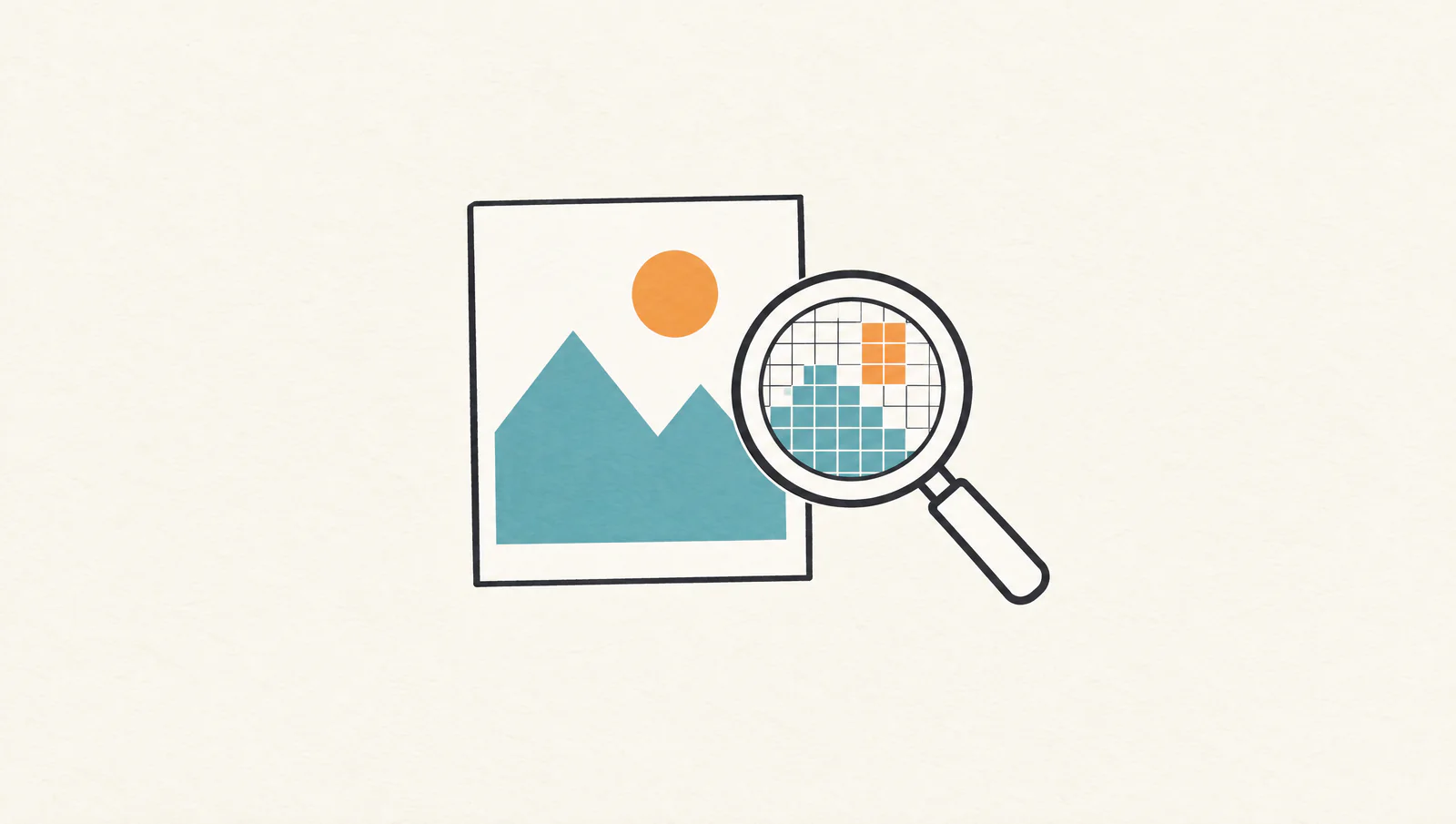
JPEG splits an image into 8×8 pixel blocks and converts them into frequency components using the DCT (discrete cosine transform). It then applies quantization, which removes high frequencies the human eye has trouble seeing. Finally, Huffman coding packs the data down. At the quantization step, information is discarded in a way that can't be reversed.
So no matter how good the encoder is, compression can't fully restore the original JPEG. Strictly speaking, "compress without losing quality" means "keep the degradation within a range where the appearance doesn't change." Getting this right changes which settings you should choose.
Note that recompressing a JPEG can sometimes make the file larger. An already optimized JPEG has no high frequencies left to remove. Karui shows a warning when the compressed file is larger. In that case, use the original file as is.
How PNG lossless compression differs
PNG is lossless. DEFLATE simply folds up the sequence of data, and pixel values don't change. The quality stays the same no matter how many times you save. This is how karui compress icon.png in Karui makes a PNG smaller losslessly while keeping it a PNG.
Don't expect the same from JPEG. The claim that "lossless compression cuts a JPEG to 50%" is false. Converting a PNG to JPEG makes it smaller because lossy compression discards information. Different formats get smaller for different reasons.
Visually lossless compression
Karui's compression engine is a next-generation JPEG encoder that we tuned ourselves. It handles quality through a perceptual parameter called distance. d1.0 is visually lossless. Higher values make files smaller, and as you move to d2.0 and d2.5, differences compared with d1.0 show up in more situations.
Appearance holds up because human vision is sensitive to luminance and less sensitive to chroma and high frequencies. Karui's engine adjusts quantization to match these characteristics. It is designed to reach the same perceptual quality as conventional JPEG with fewer bits.
Even so, d1.0 is not mathematically lossless. Sky gradients and the dark areas of night scenes show slight differences at 100%. If you need a strict comparison for client delivery, check one image exported at d1.0 first.
The setting with the biggest effect is resolution, not quality. If your display size is 1600px, the 6336px source data isn't used for display even if you have it. Lowering the long edge alone cuts the pixel count to a fraction, and the file size drops while quality stays the same.
Order of operations: resize > quality > metadata removal
If you get the order wrong, you take on degradation you didn't need to. Start with the steps that have the largest effect and the smallest impact on appearance.
| Order | Operation | Effect | Visual impact |
|---|---|---|---|
| 1 | Resize | Large | Effectively none when reducing down to display size |
| 2 | Quality (distance) | Medium | Almost none at d1.0 |
| 3 | Metadata removal | Small | None (shooting information is lost) |
Resizing reduces the pixels themselves. If you put a 6336px photo in a 1600px-wide article, the browser only scales it down for display, and the transfer size stays the same. Once you decide the long edge first, you don't have to push the quality adjustment too far afterward.
Use a quality of around 75 as your baseline. Going down to 50 or below produces block noise and color banding. Lowering resolution makes files smaller while keeping quality, so cutting quality is the last resort.
Removing metadata is more about privacy than size. EXIF contains the shooting date, equipment, and GPS location. The effect is small compared with resizing, so don't remove it if you want to keep the shooting information. It is useful if your goal is to remove GPS data before publishing.
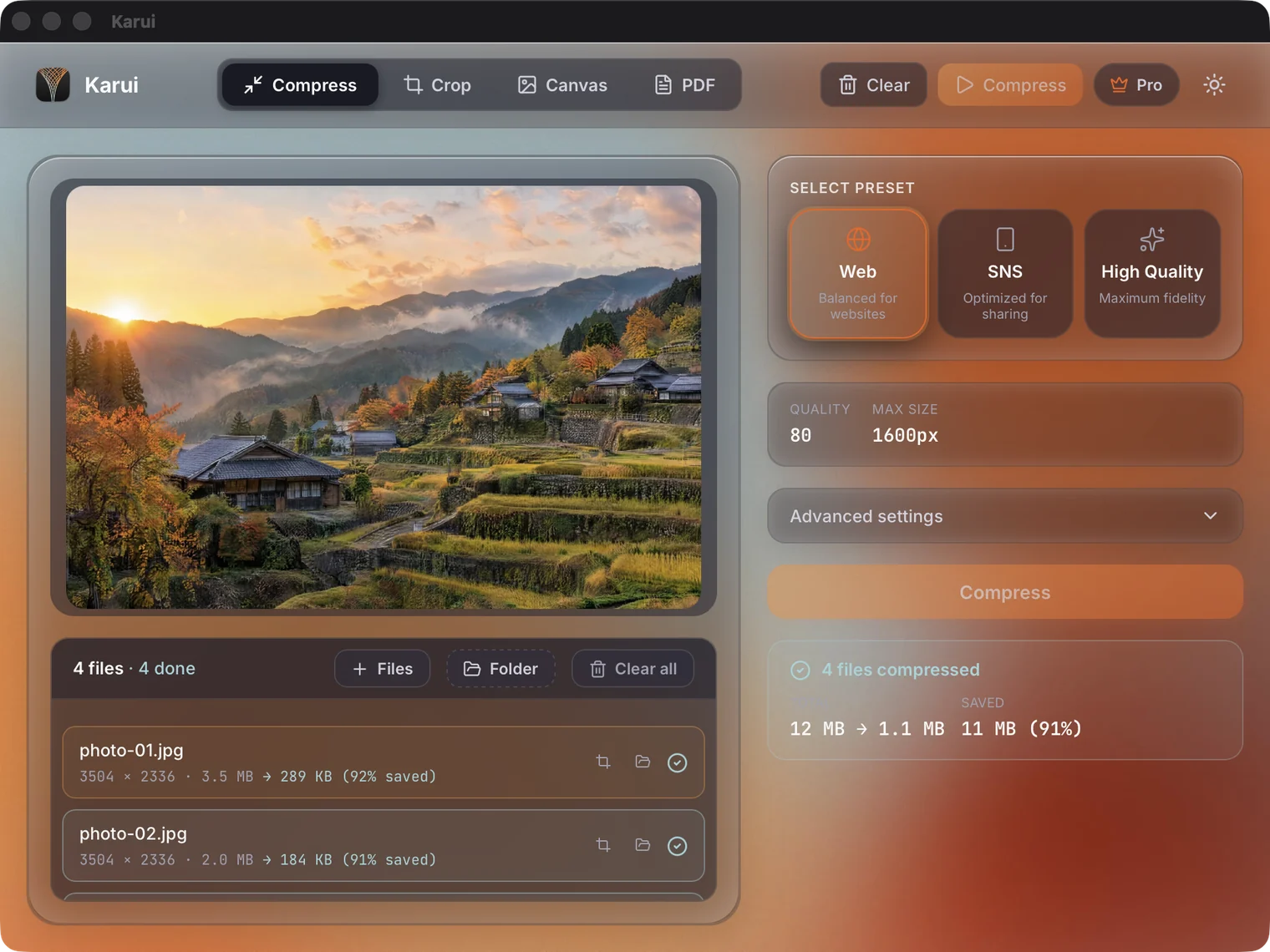
Resize and compress in one pass. Try it free for 20 files a day
Try Karui FreeMeasured results for a 9.46MB JPEG
These are in-house measurements of a 6336×9520 pixel, 9.46MB JPEG processed in Karui. Changing the settings changes the size and the use case as follows.
| Setting | Long edge | Size | Reduction | Best for |
|---|---|---|---|---|
| d1.0 | 1920px | ~450KB | 95% | Large screens, print |
| d2.0 | 1600px | ~200KB | 98% | Blogs, standard web use |
| d2.0 | 1280px | ~140KB | 99% | Social media, thumbnails |
Size of a 9.46MB JPEG processed at each setting
Going from 9.46MB to about 450KB is roughly 1/21 of the original size. At 1600px and d2.0 it is about 200KB, which is plenty for email attachments and web display. At 1280px and d2.0 it is about 140KB, which suits places where images appear small, such as social media timelines.
These numbers were measured in our own environment and vary with the content of the photo. Detailed landscapes and night scenes tend to be heavier, and portraits with strong background blur tend to be lighter. Start by running 10 images through and checking the reduction rate and the appearance.
Solve quality limits with the right order, not settings
No credit card, free for 20 files a day. If you like it, $29 once (perpetual license + 1 year of updates).
Windows 10+ / macOS 12.0+ / 100% local processingThree operations to avoid
Opening and re-saving the same JPEG
A JPEG is re-encoded every time it is saved. If you repeatedly crop and save, then fix the brightness and save, the degradation builds up. Start your edits from the original file and export only once, at the very end. If you need intermediate saves, work in PNG or TIFF instead of a lossy format.
Delivering images recompressed by social media
X, Instagram, and LINE recompress images on upload. If you save an image you posted on social media and deliver it as is, it has been compressed twice. For delivery, export a JPEG from the original file and hand it over through cloud storage or a file transfer service.
Lowering quality to 50 or below
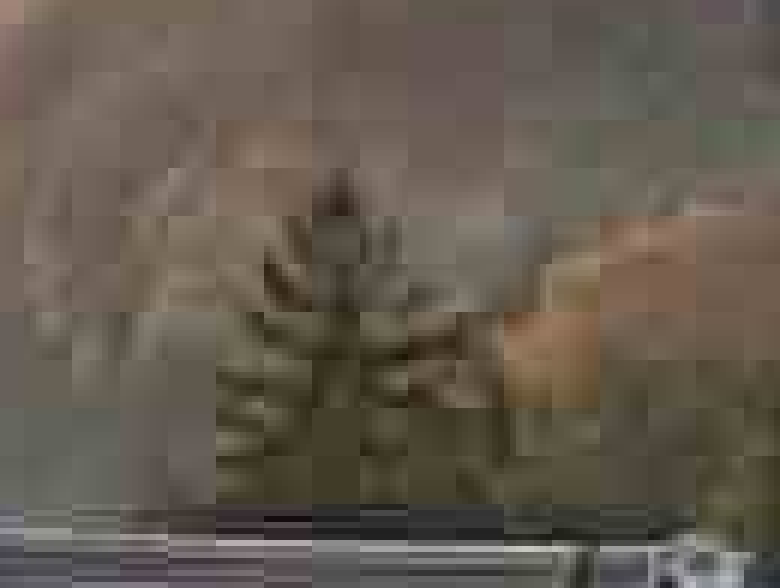
Lowering the quality slider makes the number smaller, but the image falls apart visually first. Block noise appears in skies, skin, and dark areas. When the file is still too large, lower the long edge instead of the quality. If even 1280px isn't enough, it is time to rethink the display size or the target file size.
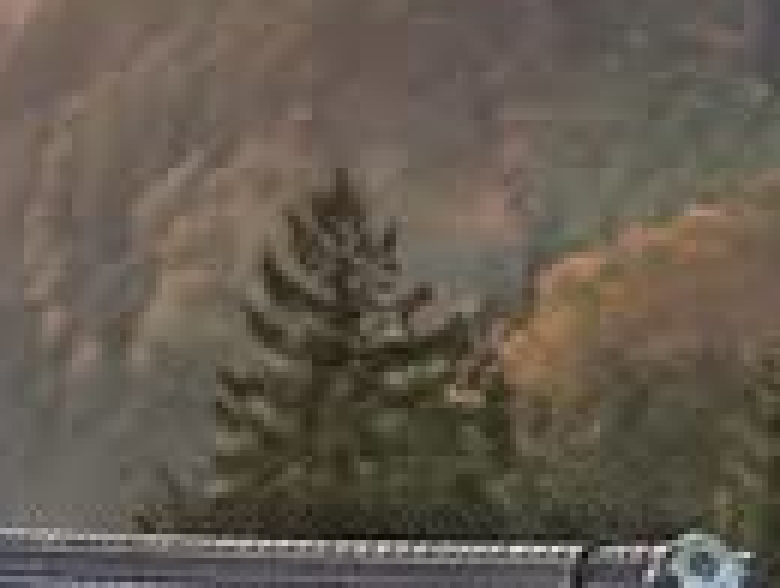 Quality 75 / 249.4 KB
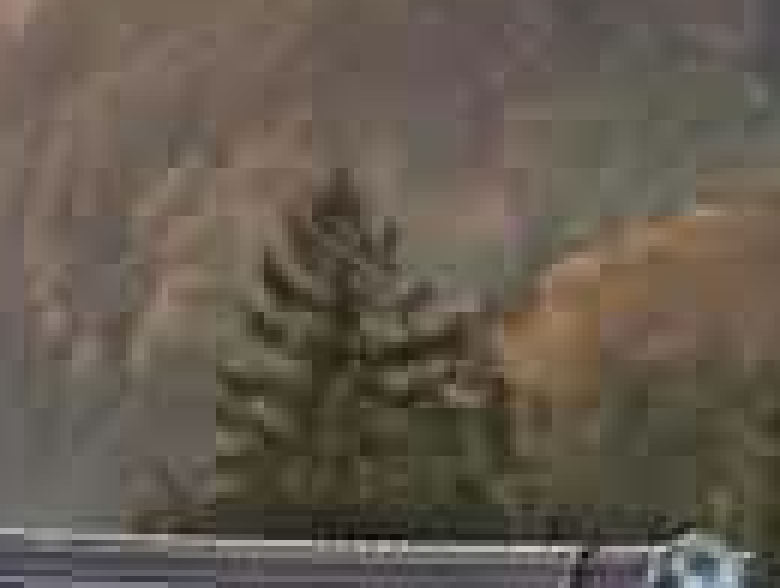 Quality 40 / 129.1 KB
 Quality 15 / 72.7 KB
FAQ
Can a JPEG be compressed with no quality loss at all?
No. The JPEG format in general use is lossy, and information discarded during quantization can't be recovered. This is different from PNG's lossless compression. What is possible is "visually unchanged" compression, which keeps the loss within a range the human eye can't detect.
What does "visually lossless" mean?
It refers to distance d1.0 in Karui. It means the human eye can't see the difference, not that the result is mathematically lossless. If you compare skies or gradients at 100%, slight differences appear.
To preserve quality, should I prioritize the quality setting or the resolution?
Resolution. Lowering quality to 50 or below produces block noise and color banding. Matching the long edge to your display size first and keeping quality around 75 results in less visible degradation.
Does saving the same JPEG repeatedly reduce quality?
Yes. Each time you open and save it, it is re-encoded and the degradation builds up. Edit from the original file and export only once, and don't open and re-save the finished JPEG.
How much can I compress for free?
Karui is free for 20 files a day. No credit card is required, and you can also try Pro features for 7 days. Processing more than 20 files and continued use become unlimited with the $29 one-time license.