How-to Guide
How to Compress a PDF Offline (No Upload, Free)
Contracts, quotes, medical records, internal approval documents. Before you put a PDF on an online compression site, stop for a moment. In exchange for "free," your file is sent to a server you know nothing about. This guide lays out three ways to shrink a PDF without an internet connection: a desktop app, the command line, and in-browser processing.
 Daichi
October 22, 2026
~7 min read
For professionals handling confidential PDFs

Why compress PDFs offline
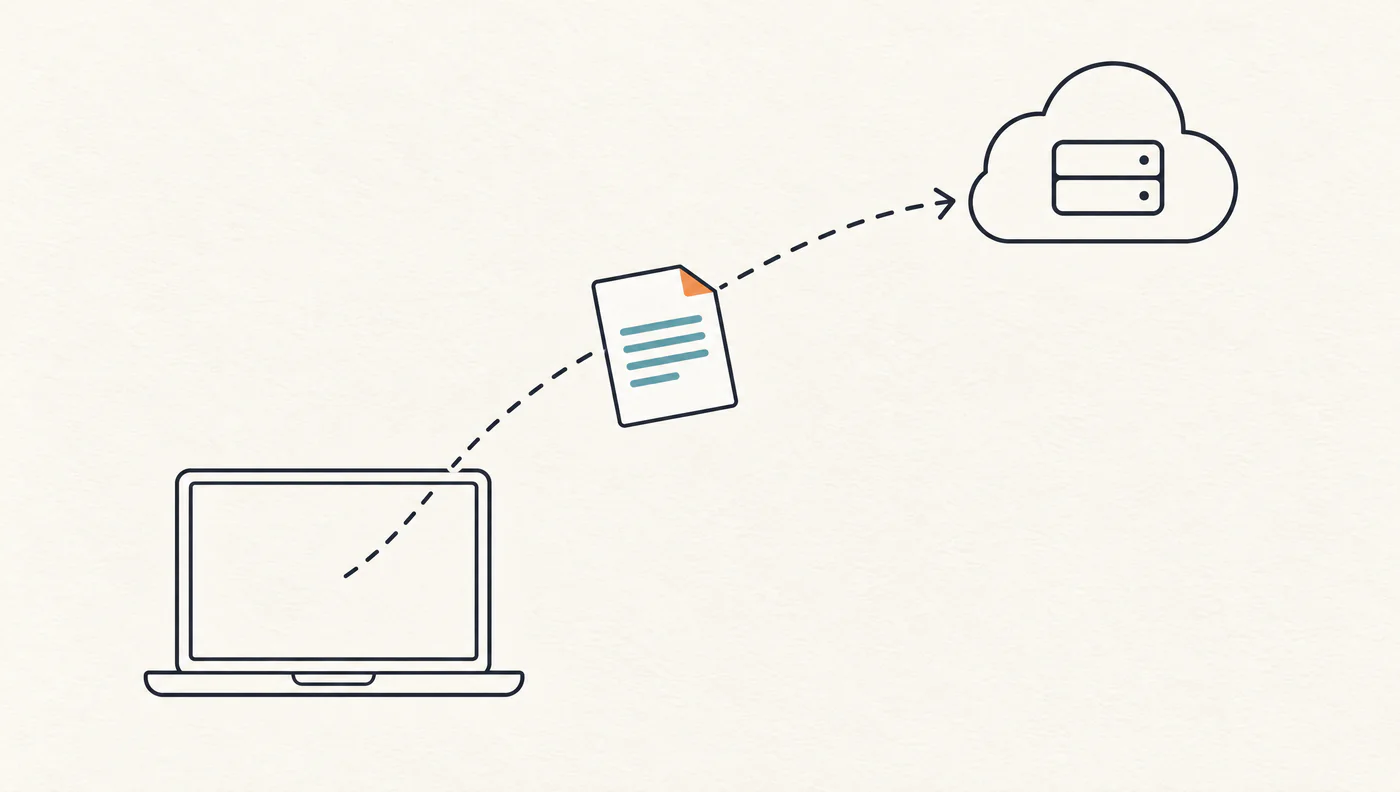
Online PDF compression is convenient. Upload, click a button, and anyone can be done in tens of seconds. The problem is that during those seconds, the file is outside your organization's control.
Many free compression sites process uploaded files on their servers. Even if the privacy policy says files are "deleted after a certain time," they are under a third party's control until then. Putting contracts, HR information, patient information, or unpublished financial results there is hard to justify from an information security standpoint.
Another thing that often gets overlooked is places where the network isn't available. Factories, hospital exam rooms, internal networks at government offices, airplanes. Where there is no connection, or outside communication is prohibited, online compression isn't an option in the first place.
Many people who search for "offline PDF compression" have already ruled out the cloud by this point. They don't need a comparison article. They need steps they can use today, right where they are.
Three ways to compress PDFs offline
| Method | Best for | Pros | Cons |
|---|---|---|---|
| Desktop app | Non-engineers, large volumes | Just drag and drop. Shows a preview and the reduction rate | Requires installation |
| CLI | Developers, recurring jobs | Can be scripted. No GUI needed | Tough if you aren't comfortable with commands |
| In-browser processing (WASM) | Computers where you can't install software | Files don't leave your computer | The page has to load the first time |
What all three have in common is that files don't go out to the internet. Below are the specific steps, in order of how easy they are to use for everyday work.
Method 1: Compress with a desktop app (3 steps)
Karui is a macOS / Windows app that compresses PDFs with a simple drag and drop. All processing stays on your computer, and nothing is uploaded.
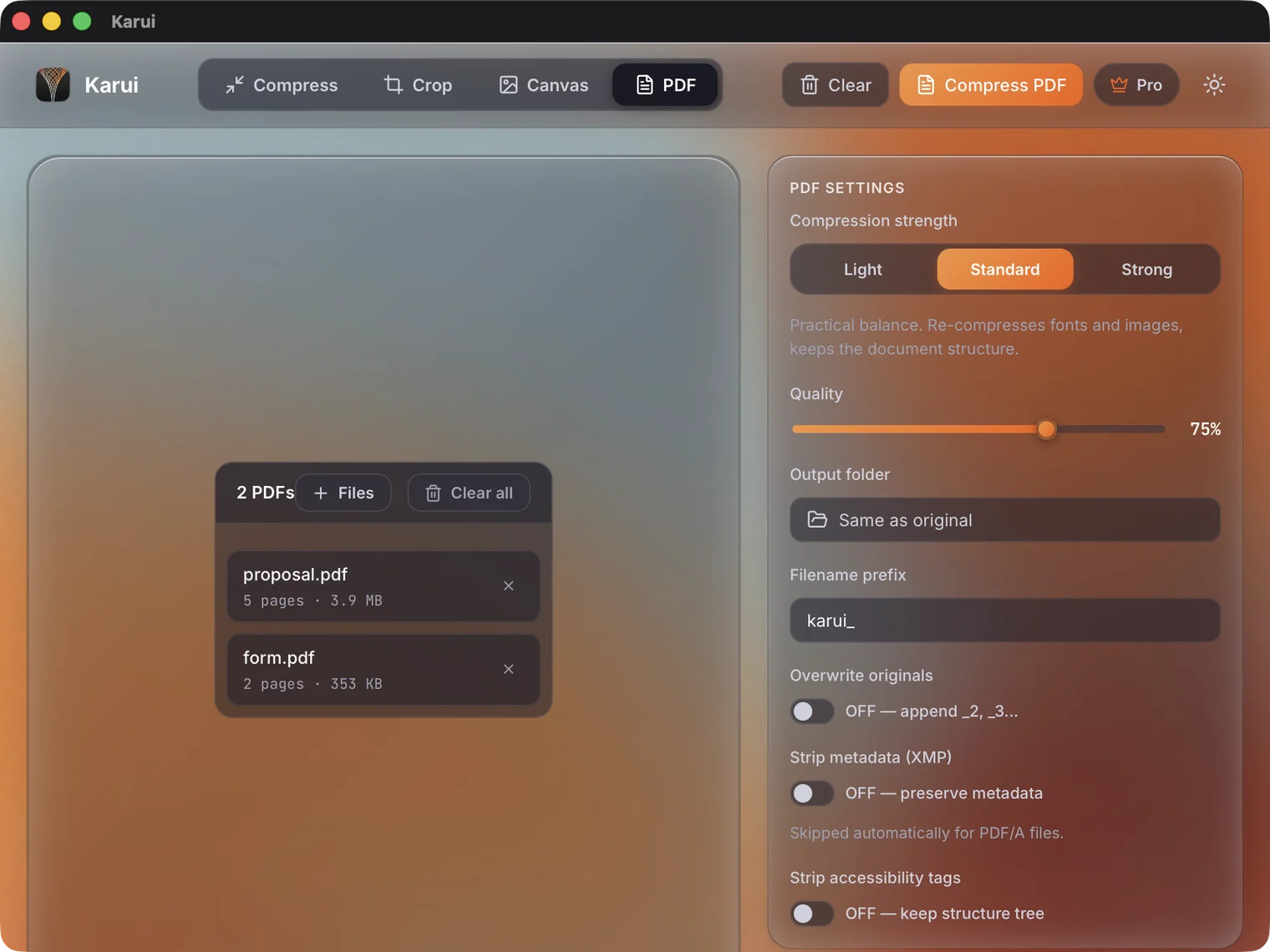
Step 1. Drop the PDF on the window
You can drop a PDF file or a folder containing PDFs. The macOS version also accepts drops on the Dock icon, and the files load even if the app isn't running.
Step 2. Choose the compression strength and quality
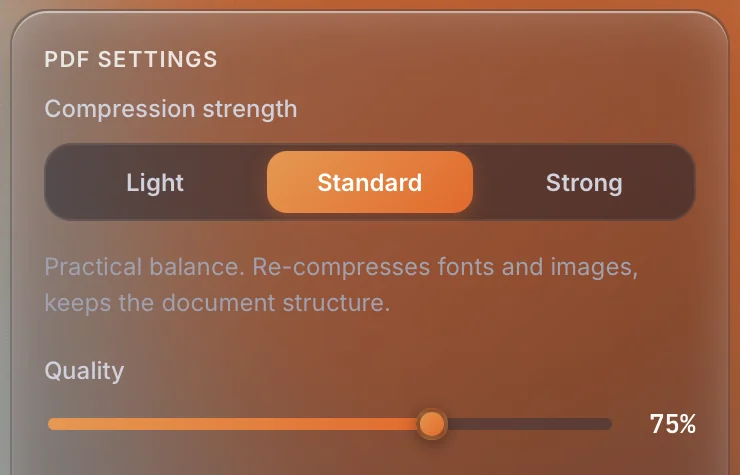
Compression strength has three levels: Light, Standard, and Strong. If you're unsure, leave it at the default, Standard.
- Light: Quality 85. Leaves text and images almost unchanged
- Standard: Quality 75. Recompresses fonts and images and keeps the document structure
- Strong: Quality 30. Also lowers image resolution and removes metadata and structure tags
Text stays as text at every level. You can fine-tune quality with the Quality slider. For documents you have to submit, use Light or Standard. If you need to fit an email attachment limit, start with Strong.
Step 3. Click Compress PDF and check the reduction rate
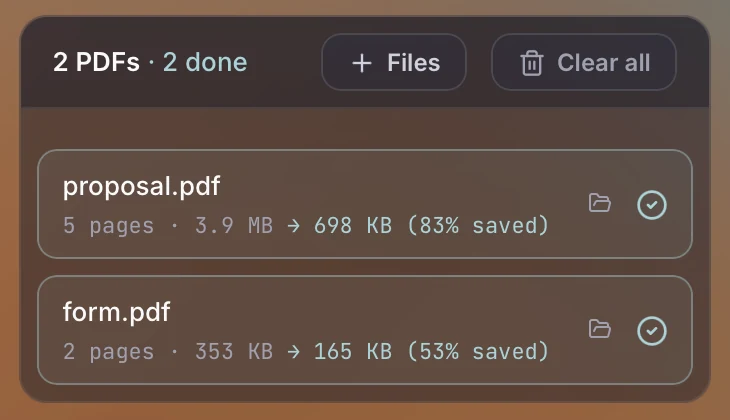
When it finishes, the original size, compressed size, and reduction rate appear side by side. Output goes next to the original file or to a folder you specify. By default the original PDF isn't overwritten, so if something goes wrong you still have it.
You can try these steps free for up to 20 files a day (no card required)
Try Karui FreeMethod 2: Batch process from the command line
If you process dozens of files on a regular basis, the CLI is faster. Karui's CLI uses the same engine and the same license file as the GUI, so if Pro is activated in the GUI, no extra setup is needed.
curl -fsSL https://karui.app/install.sh | sh

karui pdf report.pdf -q 75
karui pdf ./docs/*.pdf -q 70 -o ./compressed/
karui pdf proposal.pdf -q 75 -o compressed/
proposal.pdf -> compressed/proposal.pdf (3.91 MB -> 698.0 KB, 82.6% smaller)
done: 1 compressed, 0 failed
-q sets the quality of embedded images. Around 75 is the balance point between image quality and size, and text-heavy documents stay readable down to 70.
The usual free option is Ghostscript. The equivalent command looks like this.
gs -sDEVICE=pdfwrite -dCompatibilityLevel=1.7 \
   -dPDFSETTINGS=/ebook -o out.pdf in.pdf
Ghostscript is powerful, but /ebook drops all images to 150dpi and handles fonts coarsely, so Japanese documents sometimes don't shrink enough. The reliable way to tell which is better is to measure once with your own files.
Method 3: Compress in the browser
If you can't install software, use the browser version of Karui. Drop a PDF on the page and it is processed inside your browser. The limit is 50MB per file.
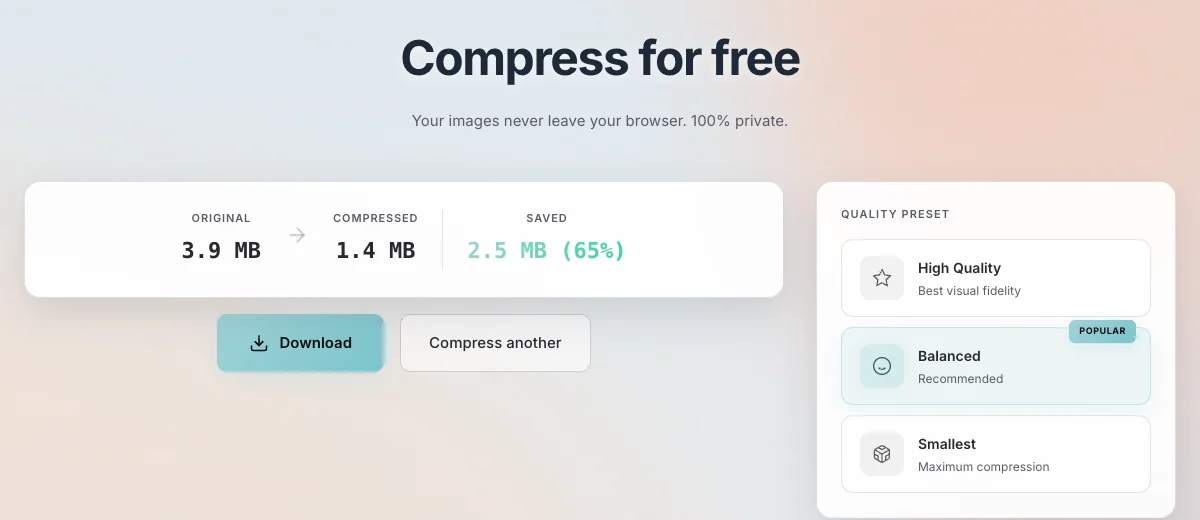
In our test, the only data sent during processing was a small amount of analytics. The PDF itself was not sent. You need a connection to load the page.
How much smaller files get
We prepared 8 kinds of PDF in-house (a Japanese business plan, an Excel export, an English paper, scanned documents, and others) and compared the reduction rates of Karui Strong (Quality 30) and Ghostscript /ebook.
| Sample | Karui Strong | Ghostscript /ebook | Difference |
|---|---|---|---|
| Japanese small-business doc | 73.9% | 48.0% | +25.9 pt |
| English sample | 94.7% | 69.1% | +25.6 pt |
| Japanese business plan | 68.8% | 51.1% | +17.7 pt |
| Japanese pitch deck | 66.9% | 53.5% | +13.4 pt |
| English paper (arXiv) | 49.4% | 48.5% | +0.9 pt |
PDF reduction rate (higher means a smaller file)
At Strong, Karui's output was smaller on all 8 files. At Standard, some files don't reach /ebook. The gap was widest on documents with a lot of Japanese fonts and on image-heavy materials. On PDFs with complex font structures, such as papers, the gap narrows to about 1 point.
These are results from our own environment. PDF internals vary widely from file to file, so your documents may not produce the same numbers. The practical approach is to try one file, check the reduction rate, and then run the rest.
Shrink that PDF without putting it online
No credit card, free for 20 files a day. If you like it, $29 once (perpetual license + 1 year of updates).
Windows 10+ / macOS 12.0+ / 100% local processingWhat to watch for with offline compression
What Strong removes
Strong doesn't only coarsen images. It also removes metadata and structure tags. The text stays, but details such as the author and the information screen readers rely on are gone. Try contracts and application forms at Standard first, and move up to Strong only when that isn't enough.
When the size doesn't go down
PDFs that are already optimized may not get smaller when recompressed. In that case, Karui outputs the original file as is and shows kept original in the list.
Unlock password-protected PDFs first
Some tools can't open encrypted PDFs. Before compressing, confirm you have the proper authority and then remove the encryption.
FAQ
What is the easiest way to compress a PDF offline?
Drag and drop the PDF into a desktop app. With Karui, you drop the PDF, choose the compression strength, and click Compress PDF. The file is never uploaded.
How can I confirm nothing is really being uploaded?
Turn off Wi-Fi with the app open and try compressing. If it finishes offline, nothing is being sent out. The Karui desktop app works with no network connection (the update check is its only communication).
Will compression make the text unreadable?
Text stays as text, so you can still search and copy it. What gets coarser is the embedded images. At Strong, small text inside figures can become hard to read, so check the result.
How much can I compress for free?
Karui is free for up to 20 files a day. You can also try Pro features for 7 days. For large batches over 20 files and ongoing use, the $29 one-time license makes it unlimited.
How is it different from Ghostscript?
Ghostscript is the standard free CLI, but file size can grow with Japanese fonts or scanned PDFs. Karui combines font re-subsetting with image recompression, and in our own measurements all 8 files at the Strong setting came out smaller than Ghostscript /ebook.