How-to Guide
How to Compress a PDF to Under 200KB for Application Forms and Uploads
You attach a PDF to an application form and see "200KB or less." Or you run into an email attachment limit. How small a PDF can get depends on how it is built. This guide covers a practical way to check the size while changing Quality, and what to try, in order, when that still isn't enough.
 Daichi
October 28, 2026
~7 min read
For anyone submitting application forms and documents

Why 200KB and 1MB upload limits exist
Size limits on submission forms and on government, university, and job application portals are set for the operator's convenience. They want to use less storage, reduce dropped connections, and shorten virus scans. What remains for you is a limit like "200KB or less per file" or "1MB or less in total."
200KB is a tight limit for a PDF. A few pages of plain text may fit, but scanned documents, application forms with photos, and proposals with many charts run to several MB as they are. A PDF made from page images can reach several hundred KB on a single page.
How the limit is checked also needs attention. 200KB is normally 204,800 bytes, but some forms check against 200,000 bytes. If you aim right at the limit, a file can be rejected even though the form says "200KB or less," so aim for the 190KB range.
PDF compression is not a cure-all. PDFs that already contain low-quality images, and PDFs that are only text, barely shrink when recompressed. Some even get larger. Look at how the original file is built and choose a method that will work on it.
Steps: changing strength and Quality to reach 200KB
Karui has no feature that takes a target size and matches it automatically. There is no "under 200KB" button, so you change Quality and check the size each time.
You will use Compression strength and Quality on the PDF tab. Karui makes files lighter by recompressing embedded images and re-subsetting fonts, and it keeps text as text. Start with Light, which has the smallest effect on appearance.
Step 1. Copy the original PDF
Do not overwrite the original. Copy it to another folder before you start. Image quality does not come back after repeated compression, so make sure you can return to the original if something goes wrong.
Step 2. Compress with Light
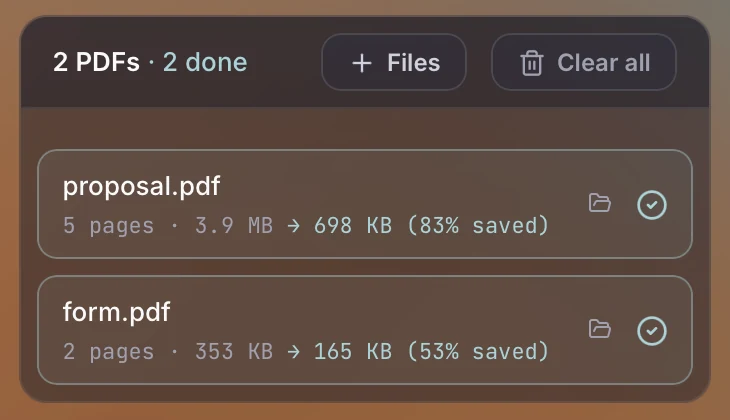
Drop the PDF into Karui, set Compression strength to Light, and press Compress PDF. When processing finishes, you see the original size, the compressed size, and the reduction percentage. If the file is under 200KB at this point, you are done. Text-heavy documents often fit at this stage.
Step 3. If it doesn't fit, move up to Standard, then Strong
If the file is over 200KB, run it again with Standard. If that doesn't get there, use Strong. Higher strength makes embedded images rougher and changes how photos and charts look. Text remains, but small text inside figures can become hard to read. To try a setting in between, move the Quality slider.
| Strength | Best for | What to check |
|---|---|---|
| Light (Quality 85) | Keeping the look of text and charts comes first | Whether the size is over 200KB |
| Standard (Quality 75) | Email attachments and internal circulation | Roughness in photos, text inside charts |
| Strong (Quality 30) | Getting under 200KB comes first | Whether scanned text can still be read and made out |
Results of compressing a 2-page application form PDF (originally 361,443 bytes) at each Quality setting
Dashed line: 200,000 bytes
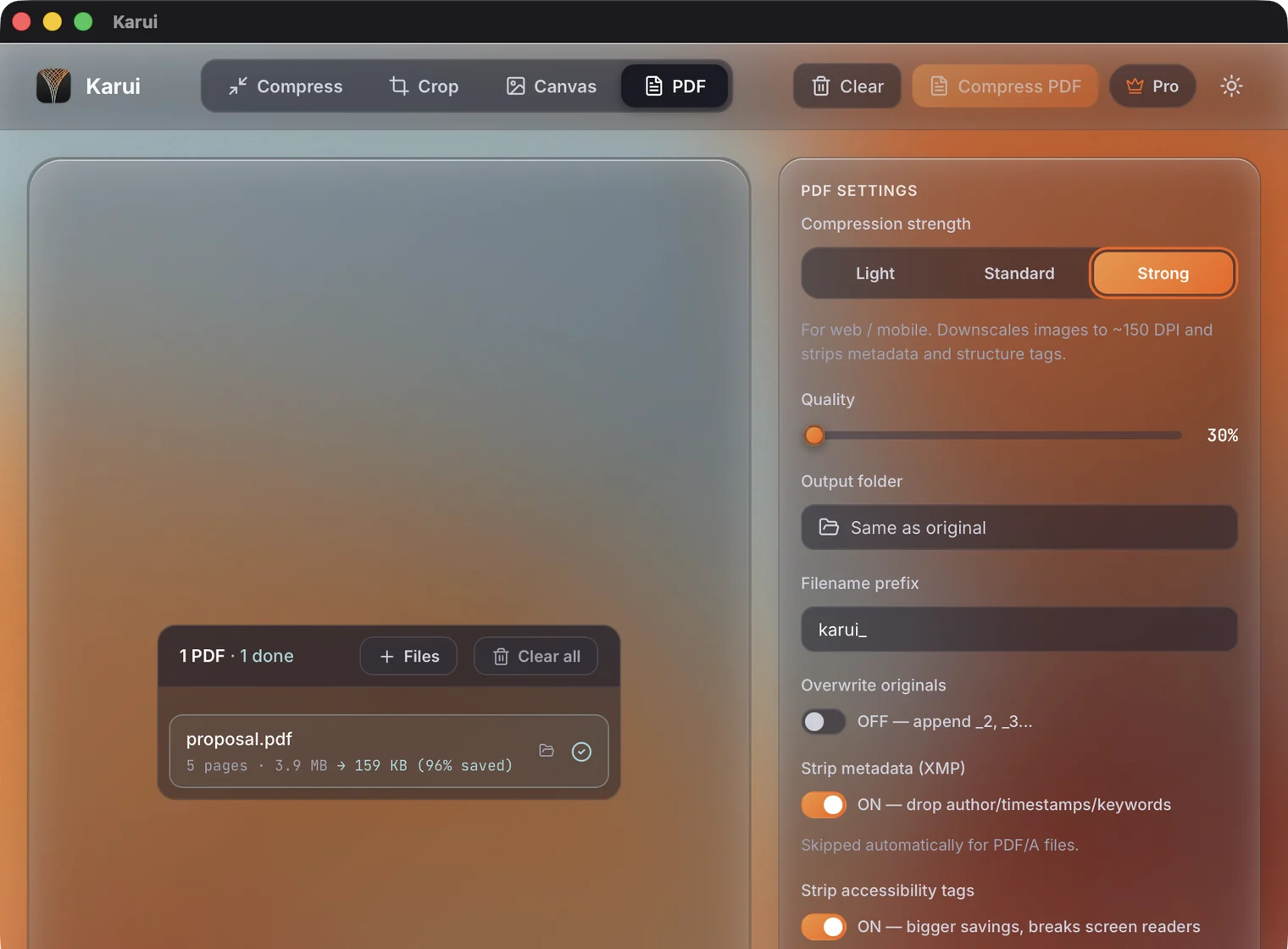
If lowering Quality does not change the size, the cause is the file's structure, not its images. When things like embedded fonts, annotations, and attachments remain, the size does not drop even though the pages look the same. Move on to the CLI section or the last resorts below.
PDF compression is free for 20 files a day. Try one file to see whether it reaches 200KB
Try Karui FreeAutomatic retries to a target size with the CLI
Changing Quality can be turned into a command. Karui's CLI uses the same engine and the same license file as the GUI, so if you have activated Pro in the GUI, no extra setup is needed.
curl -fsSL https://karui.app/install.sh | sh
The script below lowers Quality step by step from 85 to 45 and stops as soon as the file is 200,000 bytes or less. It gets the byte count with stat -f%z on macOS and stat -c%s on Linux.
#!/bin/sh
set -eu

src="$1"
target=200000
outdir="compressed"
mkdir -p "$outdir"

size() {
  if [ "$(uname)" = "Darwin" ]; then
    stat -f%z "$1"
  else
    stat -c%s "$1"
  fi
}

for q in 85 75 65 55 45; do
  out="$outdir/$(basename "$src")"
  rm -f "$out"
  karui pdf "$src" -q "$q" -o "$outdir/"
  bytes=$(size "$out")
  echo "quality=$q size=${bytes} bytes"
  if [ "$bytes" -le "$target" ]; then
    echo "Under 200KB: $out"
    exit 0
  fi
done

echo "Could not reach 200KB" >&2
exit 1sh shrink.sh form.pdf
form.pdf -> compressed/form.pdf (353.0 KB -> 195.8 KB, 44.5% smaller)
done: 1 compressed, 0 failed
quality=85 size=200450 bytes
form.pdf -> compressed/form.pdf (353.0 KB -> 165.1 KB, 53.2% smaller)
done: 1 compressed, 0 failed
quality=75 size=169013 bytes
Under 200KB: compressed/form.pdf
To use it, run sh shrink.sh report.pdf. For multiple files, use for f in *.pdf; do sh shrink.sh "$f"; done. Keep compressed/ for output only and do not put original PDFs there. The script deletes the output file before each attempt, so if you point it at the same location as the original PDF, you lose the original.
This loop is not automatic target-size adjustment. It only hands the attempts over to a script. If q=45 still doesn't reach the target, move on to the last resorts below.
Last resorts when the file still won't fit
If lowering Quality does not get the file under 200KB, try these in a set order. The earlier a method comes in the list, the smaller its effect on how the original looks.
| Method | Effect | What you lose | Best for |
|---|---|---|---|
| Delete unneeded pages | Shrinks in proportion to page count | The content of the deleted pages | A cover, blank pages, or reference material is mixed in |
| Rescan at a lower resolution | Large effect on scanned PDFs | Fine text and photo detail | You have the paper original at hand |
| Split the PDF | Makes each file smaller | Meeting a single-file submission requirement | Multiple uploads are allowed |
| Upload-based service with a size setting | Lets you specify 200KB | Confidentiality | Documents that are fine to send outside your organization |
Delete unneeded pages
Remove covers, blank pages, internal reference material, and pages from old versions that the application does not need. Reducing the page count is more reliable than raising the compression level. You can delete pages from the thumbnails in Preview on macOS or in PDF editing software. Check that the page numbers have not shifted.
Rescan at a lower resolution
If a scanned PDF is the cause, change the scanner settings and scan it again. As a guide, use around 300 dpi for mostly text and around 200 dpi for mostly photos, and use grayscale if you don't need color. Karui has no scanning feature, so make these adjustments on the scanner.
Split the PDF
If the form accepts multiple uploads, split the PDF into a first half and a second half. A "200KB or less per file" condition is checked for each file. Split the file in PDF editing software or Preview. This won't work if you are required to submit a single file.
Use an upload-based service with a size setting
iLovePDF and SmallPDF have features that let you specify a size such as 200KB. Being able to hit a target size is convenient, but you upload the PDF to the service's servers. Do not use them for confidential documents, personal information, or unpublished material.
Get past the 200KB limit by changing Quality
No credit card, free for 20 files a day. If you like it, $29 once (perpetual license + 1 year of updates).
Windows 10+ / macOS 12.0+ / 100% local processingPrecautions
Check that the text is still there after compressing
You should be able to select text in a compressed PDF by dragging over it. If you can't, the original PDF may be made of scanned images. Try the same thing on the original file. For an application form, it matters that text stays as text.
How 200KB is counted in bytes
200KB is 204,800 bytes, but some forms check against 200,000 bytes. Aim for the 190KB range. You can check the size in Get Info in Finder, Properties in Windows, or with ls -l.
Repeated compression and image quality
Compressing an already compressed PDF keeps degrading image quality, and that quality does not come back. When you try different settings, start from the original PDF each time. Adding something like "-q75" to the output name shows which setting produced it.
Remove the password from protected PDFs first
Some tools cannot open encrypted PDFs. Confirm that you have proper authorization, then remove the encryption. If the recipient requires a password, set it again after compressing.
When compression doesn't make the file smaller
A PDF that is already optimized may not get smaller when recompressed. In that case, Karui outputs the original file as is and shows kept original in the list. Deleting pages or splitting the file works better.
FAQ
Is there a feature that automatically adjusts a PDF to under 200KB?
Karui has no automatic target-size feature. You compress at Light, then Standard, then Strong, and check the file size each time. A CLI loop can automate these attempts.
Will the text still be readable at under 200KB?
Text stays as text, so it remains readable even at lower Quality. However, embedded images get rougher, and small text inside figures can become hard to read. Check every page before you submit.
Can I get a PDF under 200KB for free?
Karui is free for 20 files a day, and you can try PDF compression within that. The CLI shares the same free allowance. You can also use the free Ghostscript, or upload-based services such as iLovePDF and SmallPDF.
Does the same process work on a Mac?
Yes, it is the same. Karui runs on macOS 12.0+. To get the file size in the shell script, use stat -f%z on macOS and stat -c%s on Linux. The script checks uname and switches between them.
What is the quickest option when I can't reach 200KB?
If there are pages you don't need, delete them. For a scanned PDF, rescanning at a lower resolution works well. If the per-file limit can't be changed, check whether you can split the file and upload it in several parts.